
Protecting your WordPress site is critical, especially for small businesses facing rising cyber threats. Here’s a quick overview of 10 essential security measures to safeguard your website:
- Use Strong Passwords & Two-Factor Authentication (2FA): Prevent unauthorized access with complex passwords and 2FA tools like Google Authenticator.
- Update WordPress, Themes, and Plugins: Regular updates fix vulnerabilities and keep your site secure.
- Install a Security Plugin: Use tools like Wordfence or Sucuri for malware scanning, firewalls, and real-time monitoring.
- Enable SSL/HTTPS Encryption: Protect data and boost customer trust with an SSL certificate.
- Perform Regular Backups: Use the 3-2-1 rule and tools like UpdraftPlus for automated backups.
- Limit Login Attempts: Prevent brute force attacks by restricting failed login attempts with plugins like Wordfence.
- Use a Web Application Firewall (WAF): Block malicious traffic with WAF solutions like Sucuri.
- Disable File Editing: Stop admin users or hackers from altering critical files directly in the WordPress dashboard.
- Monitor Website Activity & Conduct Scans: Track changes and run regular security scans with plugins like WP Activity Log.
- Use Managed WordPress Services: Simplify security management with expert services like S-FX.com.
Why This Matters:
With 61% of small businesses experiencing cyberattacks and the cost of breaches averaging $200,000, these measures can protect your site, data, and reputation. Start implementing these steps today to secure your business online.
WordPress Security Essentials – Best Practices & Plugins
1. Use Strong Passwords and Two-Factor Authentication
Strong passwords and two-factor authentication (2FA) are essential for protecting your WordPress site from unauthorized access. Research shows that weak passwords account for over 80% of website breaches in small businesses.
A strong password should include at least 12 characters, mixing uppercase and lowercase letters, numbers, and special characters. Using unique passwords for each account ensures that a single breach won’t compromise multiple systems.
Password managers like LastPass can help by generating and securely storing complex passwords. Adding 2FA is also simple with plugins like Wordfence, which offers built-in 2FA features. Tools such as Google Authenticator can generate time-based codes to provide an extra layer of security.
Here are some practical steps to secure your WordPress site:
- Enable 2FA for all admin accounts.
- Train your team on proper password management.
- Use unique passwords for admin, FTP, and database access.
- Regularly audit user permissions to remove inactive accounts.
- Establish clear security guidelines for new hires.
2. Update WordPress Core, Themes, and Plugins
Beyond using strong passwords and enabling two-factor authentication (2FA), keeping your WordPress setup updated is a key step in protecting your site. Outdated WordPress core files, themes, or plugins are common entry points for hackers, so staying on top of updates is essential for maintaining security.
For instance, recent WordPress updates have resolved critical security gaps, showing why it’s important to act swiftly when update notifications appear.
Here are a few tips to manage updates effectively:
- Turn on automatic updates for WordPress core files.
- Check themes and plugins weekly for updates.
- Back up your site before applying any updates.
To make this process easier, you can use tools like Sucuri or Wordfence. These plugins can automate updates and scan for vulnerabilities, saving you time and effort.
"Regularly update your WordPress core, themes, and plugins to the latest versions. Updates often include security patches for vulnerabilities." – Web Designer Depot, "Rock Solid WordPress Security: Keeping Your Business Safe"
For added safety, test updates on a staging site – a duplicate of your live site – before rolling them out. This helps you catch any compatibility issues before they impact your visitors.
While updates fix known security flaws, pairing them with a reliable security plugin can help guard against new and evolving threats.
3. Install a Reliable WordPress Security Plugin
Strong passwords and regular updates are crucial, but adding a security plugin can significantly strengthen your WordPress site’s defenses. These plugins offer tools to protect your small business from potential threats.
Key features include:
| Feature | Purpose | Benefit to Your Business |
|---|---|---|
| Malware Scanning | Identifies and removes harmful code | Protects against data breaches and downtime |
| Firewall Protection | Blocks suspicious traffic | Lowers the risk of hacking |
| Real-time Monitoring | Keeps track of site activity | Allows for quick action on threats |
| Security Hardening | Fixes weak spots | Reduces exposure to vulnerabilities |
If you’re unsure which plugin to choose, here are some trusted options:
- Wordfence Security: Known for its endpoint firewall and malware scanner, it also includes useful free features.
- Sucuri Security: Offers advanced tools like expert breach response, DDoS protection, and real-time threat detection.
- iThemes Security: With over 30 features tailored for WordPress, it’s user-friendly and perfect for small businesses.
To get the most out of your security plugin:
- Turn on real-time alerts to catch threats as they happen.
- Schedule automated scans to ensure regular checks.
- Review security logs periodically for any unusual activity.
4. Enable SSL/HTTPS Encryption
SSL encryption plays a key role in securing your WordPress site. It protects data during transmission and reassures visitors that your site is trustworthy. Research from GlobalSign shows that 85% of online shoppers avoid websites that aren’t secure.
| Impact Area | Without SSL | With SSL |
|---|---|---|
| Customer Trust | Displays "Not Secure" warning | Shows a padlock icon |
| Search Rankings | Lower ranking on Google | Improved ranking potential |
| Data Protection | Data can be intercepted | Data is encrypted |
| Payment Processing | Fewer payment options available | Secure and reliable transactions |
SSL not only protects sensitive information but also improves your site’s credibility and search engine visibility. Without it, browsers flag your site as "Not Secure", which can drive visitors away and hurt conversions.
How to Set Up SSL/HTTPS on WordPress
-
Get an SSL Certificate
You can opt for a free SSL certificate from providers like Let’s Encrypt or choose a paid option from companies like GlobalSign or Comodo. Many hosting services include free SSL certificates in their plans. -
Use a Plugin for Easy Setup
Plugins like Really Simple SSL simplify the process. They handle the setup, fix mixed content issues, and ensure your site properly displays the padlock icon with ‘https://’.
Tips for Better SSL Management
- Select a certificate that matches your site’s needs. For example, e-commerce sites may require advanced certificates.
- Automate certificate renewal and monitor its status through your hosting provider’s dashboard.
Google favors HTTPS sites in search rankings, so having SSL is essential for both security and visibility. Plus, browsers label non-HTTPS sites as unsafe, which can damage visitor trust.
While SSL protects data during transmission, don’t forget to create regular backups. This ensures you can quickly restore your site in case of any issues.
5. Perform Regular Backups
Backups are a lifeline for small businesses, helping to recover from cyberattacks or accidental data loss without major interruptions. The frequency of your backups depends on how often your site changes: daily for active sites with frequent updates, and weekly for static ones.
| Backup Type | What’s Included | Best For |
|---|---|---|
| Full Backup | Entire site files and database | Monthly archives |
| Incremental Backup | Only changes since the last backup | Daily updates |
| Database Only | Posts, pages, and settings | Dynamic content |
Using the 3-2-1 Backup Rule
Stick to the 3-2-1 rule: maintain three copies of your data, store them across two different types of media, and keep one copy offsite for added security.
Automating Backups with Tools
Tools like UpdraftPlus make automating backups simple. This WordPress plugin offers both free and premium plans, supports incremental backups, and integrates with cloud storage services. You can also configure it to encrypt files and run backups automatically, saving time and ensuring your data stays protected.
Testing Your Backup Files
Backups are only useful if they work. Regularly test them in a staging environment to confirm they restore correctly. Hosting providers like WP Engine often include staging tools to make this process smoother.
Choosing the Right Storage
Your storage choice matters just as much as the backup itself. Here are some options:
| Storage Option | Description |
|---|---|
| Cloud Storage | Secure, encrypted, and accessible anywhere |
| Local Server | Quick restoration with full control |
| External Drive | Offline protection with physical security |
If your business handles customer data, make sure your backup approach complies with data protection regulations like GDPR. Encryption and strict access controls are essential.
While backups are crucial for data recovery, don’t overlook other security measures – like limiting login attempts – to reduce risks from the start.
sbb-itb-0111765
6. Limit Login Attempts
Brute force attacks use automated tools to guess login credentials, making it crucial to restrict login attempts.
Setting Up Login Limits
Using security plugins simplifies the process of limiting login attempts. Wordfence, a leading WordPress security plugin, makes this easy with both free and premium options. Here’s a suggested setup:
| Setting | Suggested Value | Why It Works |
|---|---|---|
| Maximum Login Attempts | 3-5 tries | Balances security and user convenience |
| Lockout Duration | 30 minutes | Discourages automated attacks |
| Admin Notifications | Enabled | Keeps you informed about potential threats |
Advanced Protection and Monitoring
Security tools like Sucuri and iThemes Security go beyond limiting login attempts. They monitor activity, block harmful IPs, and log failed login attempts with details like IP addresses, timestamps, and locations. These plugins also maintain an updated blocklist of known malicious IPs, automatically stopping suspicious activity that resembles brute force behavior.
Balancing Security and User Experience
To ensure users aren’t frustrated, display clear lockout messages, offer password reset options, and notify users when their account is locked out.
Combine with Other Security Features
Limiting login attempts is most effective when paired with additional measures. Adding a Web Application Firewall (WAF), for instance, provides an extra layer of protection to shield your site from other threats. Together, these tools create a stronger defense against attacks.
7. Use a Web Application Firewall (WAF)
A Web Application Firewall (WAF) adds an extra shield for your WordPress site by filtering web traffic before it even reaches your server. It works alongside your security plugins and login restrictions to provide stronger protection.
How WAFs Keep Your Site Safe
WAFs analyze HTTP traffic to guard against common attacks like SQL injection, cross-site scripting (XSS), cross-site request forgery (CSRF), and denial of service (DoS). By spotting suspicious patterns, they block harmful requests before they can cause damage.
Choosing the Right WAF
| Solution Type | Features | Ideal For |
|---|---|---|
| Cloud-based | – Filters traffic before it hits your server – Handles DDoS attacks effectively – Reduces server load |
Businesses needing high-level security |
| On-site | – Works directly on your server – Offers detailed traffic insights – Allows more control |
Teams with strong technical skills |
Tips for WAF Setup and Maintenance
When selecting a WAF, focus on features like real-time threat detection, malware scanning, IP blocking, and minimal impact on site performance. Many premium WAFs offer excellent protection at a reasonable cost, making them a great choice for small businesses.
To keep your WAF running smoothly, check your site’s speed regularly, fine-tune rules to avoid blocking legitimate users (false positives), and update settings as needed. Regular maintenance ensures your WAF remains effective without slowing down your site.
For even more security, consider disabling file editing within WordPress. This simple step reduces the risk of internal threats and complements the protection your WAF provides.
8. Disable File Editing in WordPress Dashboard
The built-in file editor in the WordPress dashboard might seem handy, but it poses a major security risk for your website. This feature lets users directly edit theme and plugin files, which can become a gateway for malicious activity. Disabling it is an important step in strengthening your site’s defenses, alongside measures like limiting login attempts and using firewalls.
Why Turn Off File Editing?
When the file editor is enabled, anyone with admin access can modify your site’s PHP files directly from the dashboard. If a hacker gains access to an admin account, they could inject harmful code into your theme or plugins, potentially compromising your entire site.
How to Turn It Off
To disable file editing, add this line to your wp-config.php file:
define('DISALLOW_FILE_EDIT', true);
If you’re not comfortable editing files manually, security plugins like Wordfence or Sucuri offer simple, one-click options to disable this feature.
Safer Ways to Manage Files
Once file editing is disabled, you’ll need secure methods for making legitimate changes. Tools like SFTP clients or version control systems such as Git are excellent alternatives. These options not only allow you to edit files but also provide detailed logs, so you know who made changes and when.
Disabling file editing minimizes risks from within, but don’t stop there. Regularly monitor your site’s activity and perform routine security checks to stay ahead of potential external threats.
9. Monitor Website Activity and Conduct Regular Security Scans
Keeping an eye on your website’s activity and running regular security scans are key steps to protecting your WordPress site. For small businesses, these measures can help spot and stop threats before they escalate.
How to Set Up Monitoring
Using tools like WP Activity Log can make tracking site activity much easier. This plugin monitors user actions, file changes, and system updates, sending real-time alerts if something looks suspicious. Pricing starts at $89 for a single-site license, offering detailed tracking features.
"Having an activity tracking log puts a check and balance system in place." – WPBeginner Editorial Staff
What to Monitor
Pay close attention to these areas:
- Changes to your database
- Plugin or theme installations and updates
- Adjustments to settings, particularly in payment gateways
- Modifications to user roles and permissions
Regular Security Scans
Tools like MalCare and Sucuri are excellent for scanning your site. Here’s a quick comparison:
| Feature | MalCare | Sucuri |
|---|---|---|
| DNS-level Firewall | No | Yes |
| Performance Impact | Low | Moderate |
Real-Life Examples
Monitoring tools have helped businesses catch unauthorized changes, such as tampered affiliate links or altered payment settings, preventing financial losses.
Tips for Staying Secure
- Schedule daily security scans to catch issues early.
- Review activity logs every week for unusual patterns.
- Set up instant alerts for critical events like failed login attempts or file changes.
- Always perform a security check after making major updates to your site.
"Website security isn’t a one-time task; it’s an ongoing process." – Wonkrew Blog, Digital Marketing Agency
10. Use Managed WordPress Services like S-FX.com Small Business Solutions
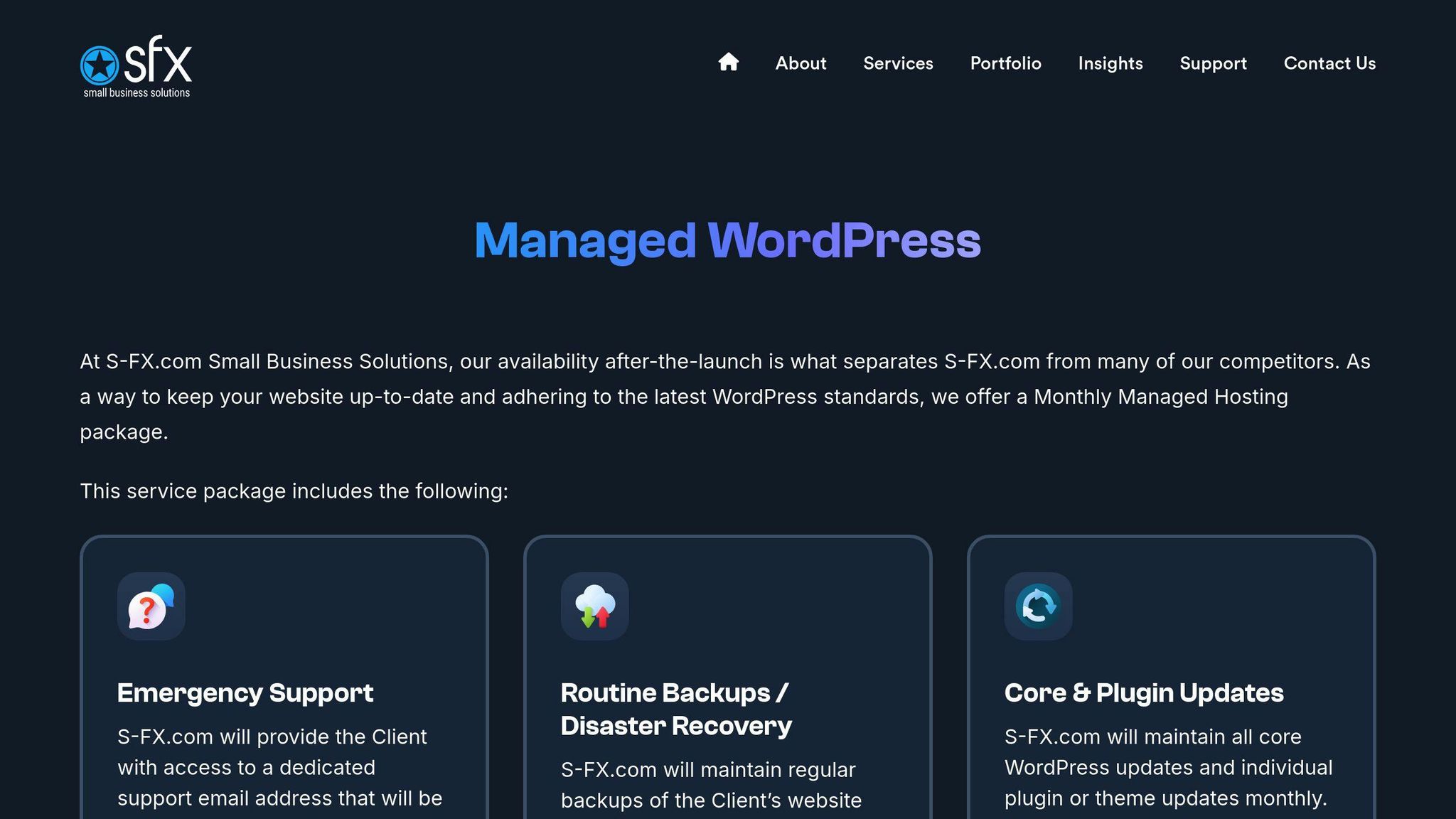
Keeping your website secure can be a challenge, especially for small businesses with limited resources. Managed WordPress services offer a simpler way to handle security, bundling key features into one easy-to-manage system.
All-in-One Security Solution
These services combine tools like automatic updates, advanced scans, and firewalls into a single package. This layered approach delivers strong protection without requiring business owners to have technical know-how.
"Website security isn’t just about having the right tools – it’s about having experts who know how to use them effectively", says Shane Skwarek, founder of S-FX.com Small Business Solutions.
Why It Makes Sense for Businesses
Managed WordPress services bring several key advantages to the table:
| Advantage | What It Means |
|---|---|
| Easier Management | Everything is handled through one system instead of juggling multiple tools. |
| Lower Costs | More affordable compared to buying separate security solutions. |
| Professional Support | Access to WordPress experts when you need help. |
| Time Efficiency | Automated processes save you hours of manual work. |
Getting Started the Right Way
By consolidating tools and automating tasks, managed services help cut costs and reduce risks. To get the most out of these services, collaborate with your provider to pinpoint weak spots, set up the right features, and create a plan for monitoring and responding to threats.
Conclusion
By using the right tools and strategies, small businesses can take meaningful steps to secure their WordPress websites. The ten security measures discussed offer a strong starting point to help protect against the ever-changing landscape of cyber threats.
Why Acting Now Matters
Think of website security as an investment in your business’s future. While services like Sucuri or Wordfence cost $199/year each, they pale in comparison to the financial and reputational damage caused by a security breach. These proactive measures help maintain customer trust, detect threats early, and provide ongoing protection with automated tools and expert support.
Building a Safer Digital Presence
Investing in security doesn’t just prevent losses – it sets the stage for long-term growth. As threats continue to evolve, combining technical solutions such as web application firewalls (WAFs) with consistent human oversight ensures your website remains protected. A layered approach is your best bet against potential attacks.