
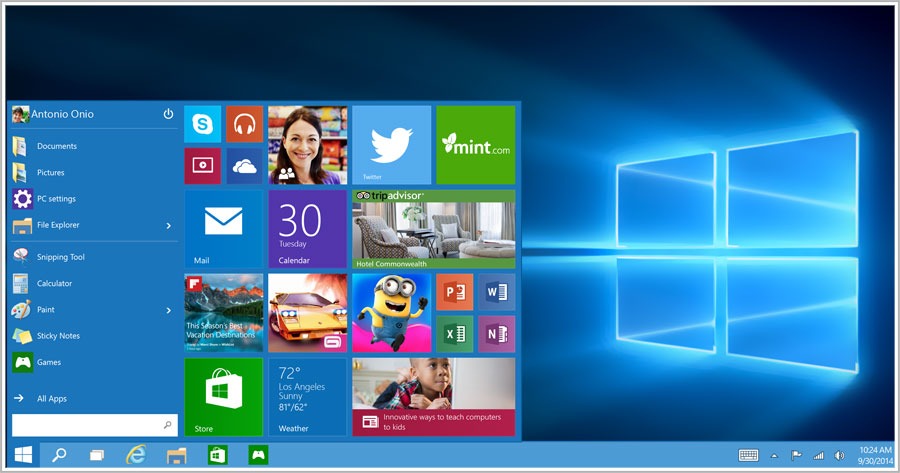
This week on #TechTuesdays, we want to stop and take an important look at Windows 10. We love new operating system releases here at S-FX, and recognize the impact these updates can have on your day-to-day small business productivity. Recently we took a look at the upcoming Mac OS X El Capitan release, and now that Windows 10 is set to arrive on July 29, it’s time to review the top features, drawbacks, and how you can get your hands on Microsoft’s latest.
Windows 10 Advantages
Microsoft is calling Windows 10 “the last version of Windows” because the company plans to focus on Windows as a service in the future, performing future updates on a more incremental, regular basis and eschewing a focus on version numbers. However, that said, there are a lot of big updates as the company makes the leap to version 10. The following are a few of the biggest:
Cortana: Microsoft is bringing their personal voice assistant over from Windows Phone and into the desktop space. If you aren’t familiar with Cortana, think Apple’s Siri. It’s a personal digital assistant that makes getting information faster and easier in many instances, and can be voice or text-activated. Set reminders, update calendars, check the weather, look up web queries, and more just by making natural-sounding requests, such as “What appointments do I have tomorrow?”
Office 2016 Universal Apps: Universal PowerPoint, Excel and Word apps will all be available for purchase separately, outside of the available Office 2016 full desktop suite. Each has been designed with Windows 10 in mind, and offer a “touch-first” controls that allow you to easily design PowerPoint presentations or manipulate Excel spreadsheets even if you don’t have a keyboard or mouse with you.
Microsoft Edge: Internet Explorer has for years been the joke of the browser industry, and let’s be honest, at times it really has been a downright icky experience. Now, Microsoft is coming to our rescue with an altogether new browser, Microsoft Edge, that features Cortana integration, comment sharing, a reading view, and text and ink-based web page annotation support, among other advancements.
Security: “Windows Hello” will allow users to use biometric authentication — via your fingerprint, iris, or face — in order to log into a computer, instead of using an easily guessed password. However, keep in mind this functionality requires compatible hardware elements, such as a biometric fingerprint scanner on your desktop or laptop.
Windows Store: Much like with the Mac OS X app store, you’ll now be able to download trusted Windows applications easily.
Free: Yes! Consumers and small businesses, rejoice. Upgrading to Windows 10 will be free for those with a qualifying existing Windows installation. More on that below under “How to Upgrade to Windows 10.”
Secure Boot and Device Guard: For Windows 10 Pro installs only, Secure Boot and Device Guard functionality looks out for small businesses by essentially helping to ensure that only trusted apps can be used once the device is booted up.
Cloud Technology Support: For Windows 10 Pro installs only, cloud technology support allows businesses to support the option of having their employees choose their own device. Any business with a CYOD (Choose Your Own Device) program will want to invest in Windows 10 Pro.
Windows 10 Drawbacks
Windows Desktop Gadgets: Gone. These widgets are no longer available, so if you’re coming from Windows 7 or Windows Vista and enjoyed using these gadgets to get quick information at a glance, you’re out of luck.
DVD Playback Support: Surprisingly, Microsoft has announced that if you want to watch DVDs in Windows 10, separate playback software will have to be downloaded and used, at least until Microsoft potentially has a solution to introduce later this year (at the earliest).
Automatic Updates: If you own the “Home” version of Windows 10, you’ll no longer be able to defer operating system updates. All Windows 10 updates will be downloaded and installed without your consent. However, those with a Pro edition of Windows 10 will still be able to control operating system updates manually.
How to Upgrade to Windows 10
So, you know many of the positives and the negatives behind Windows 10 and can make an educated decision as to whether the new operating system will be of use to your small business. Now, how can you upgrade?
Windows 10 doesn’t become available until June 29, but if you are already running a qualifying Windows machine you can go ahead and reserve your download of the new OS now — for free. That’s right. As long as you have a device running an authentic (not pirated) version of either Windows 7, 8.1, or Phone 8.1, you qualify for a free upgrade to Windows 10.
The easiest way to upgrade to Windows 10 is to go ahead and reserve your free download now. Find the Windows icon at the right side of the bottom taskbar within your current Windows installation, click on it, and then click “Reserve your free upgrade” in the app window that pops up. Then you’ll simply need to enter your email address to confirm, and Windows 10 will automatically download and install itself as it becomes available on June 29. If you don’t reserve your free upgrade ahead of time, you can still upgrade for free at a later date.
Additionally, if you do not qualify for the free Windows upgrade, you can buy Windows 10 Home for $119.99 or Windows 10 Pro for $199.99. Both are available online or at retail.
Wrap-Up
There we go! You’re either looking forward to a brave new Windows world with Windows 10, or have decided to take a wait-and-see approach. Either way, you’re now armed with the knowledge to make an educated decision for your small business.
We’ll be sure to provide an upgrade reminder for Windows 10 next week on #TechTuesdays. Until then, enjoy your week, and try to stay out of the heat!