
How to Delegate Domain Access Securely: A Step-by-Step Guide by S-FX

March 17, 2025

Once your website is completed and ready for launch, it’s essential to point your domain (URL) to the hosting server where your website resides. The most efficient way to accomplish this is by delegating access to your domain provider, allowing technical experts to configure the necessary settings on your behalf.

Identifying Your Domain Provider

If you’re uncertain about who manages your domain, you can utilize the ICANN Lookup Tool to identify your domain registrar.

Delegating Access Based on Your Domain Provider

Different domain providers have varying procedures for granting delegate access. Below are general guidelines for some common providers:

1. Network Solutions

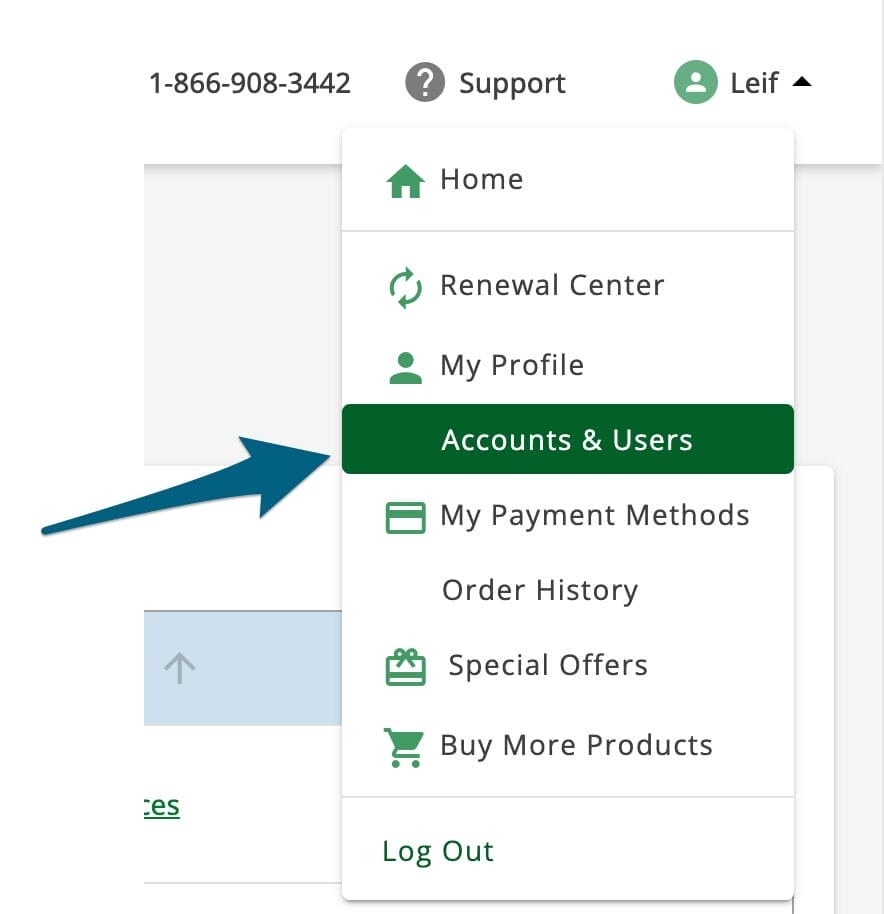
Access Accounts and Users on Network Solutions website

  • Step 2: Navigate to the “Accounts” section located at the top right corner (typically under your name). Click on the link and select ‘Accounts & Users’ from the submenu.
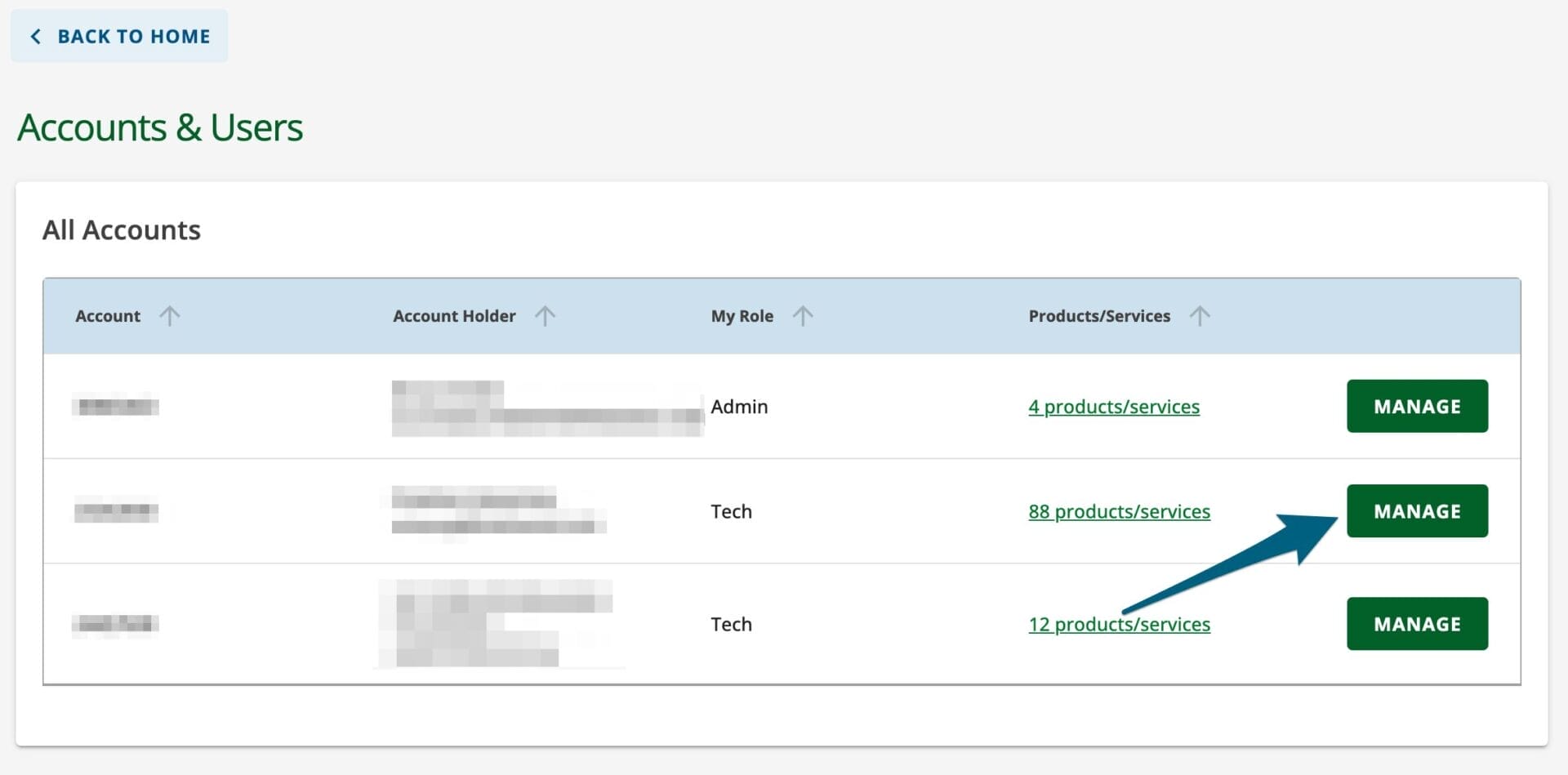
Network Solutions Accounts & Users table

  • Step 3: Choose the account you wish to delegate access to and click the ‘Manage’ button.
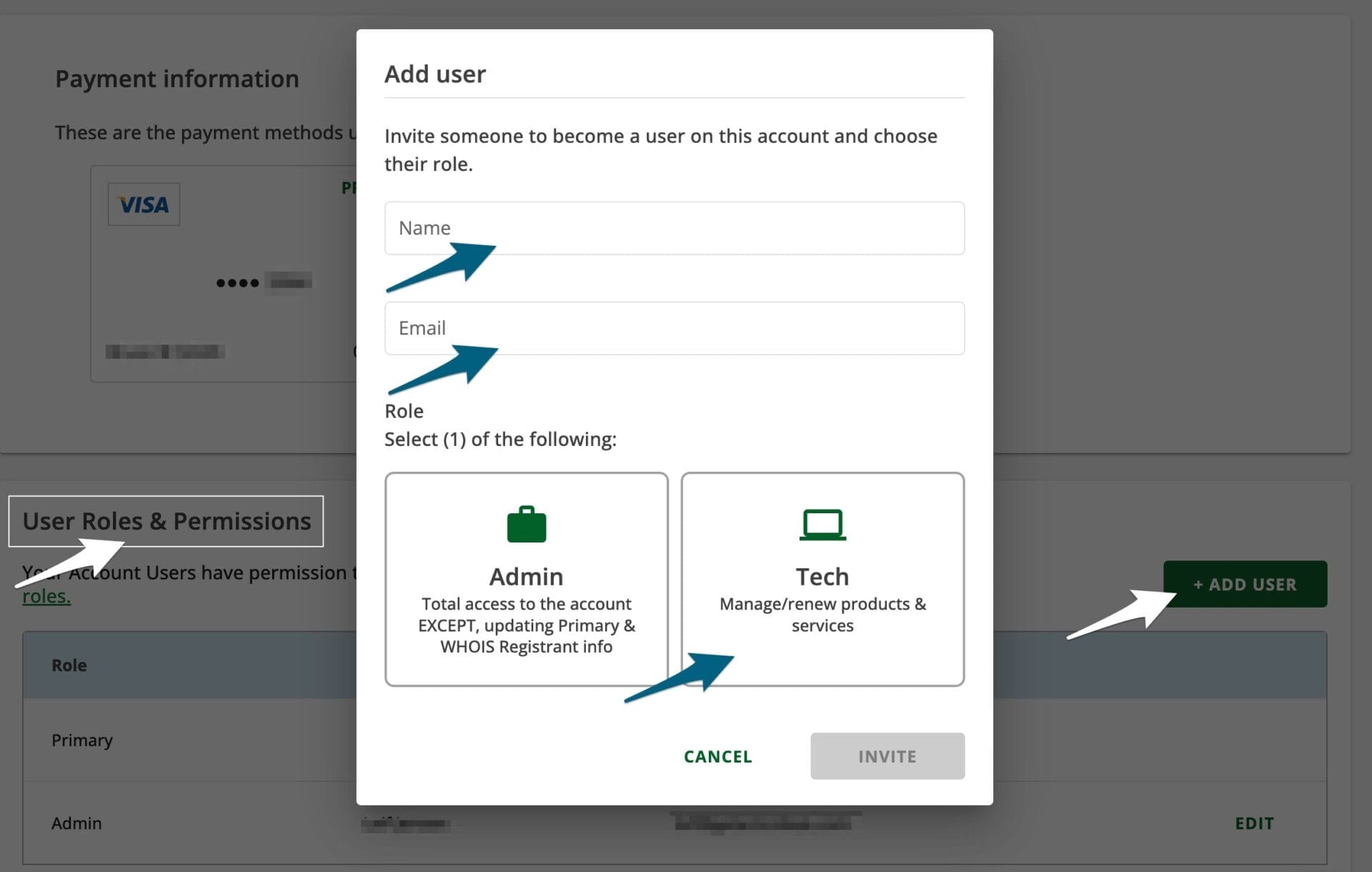
Add user to Network Solutions domain

  • Step 4: Scroll down to the ‘User Roles & Permissions’ section and click the ‘+ Add User’ button. Enter the individual’s name and email address. For technical purposes, assigning the “Tech” role is sufficient.

  • Step 5: Click ‘Invite’ to send the invitation. The recipient will receive an email notification and can then access your domain settings to make the necessary configurations.

2. GoDaddy

  • Step 1: Log in to your GoDaddy account.

  • Step 2: Click on your name in the upper right corner and select ‘Account Settings,’ then ‘Delegate Access.’

How to Provide Delegate Access in GoDaddy: A Simple Step-by-Step Guide domain

  • Step 3: In the ‘People who can access my account’ section, click ‘Invite to Access.’

https://images.surferseo.art/01635742-4531-446c-a1c8-fcecdcdb57ff.png domain

  • Step 4: Enter the delegate’s name and email address, then choose the appropriate access level (e.g., “Products & Domains”).

  • Step 5: Click ‘Invite’ to send the invitation. The delegate must accept the invitation within 48-72 hours.

For more detailed information, refer to GoDaddy’s official guide on granting delegate access to domains.

3. Google Domains

  • Step 1: Sign in to your Google Domains account.

  • Step 2: Select the domain you wish to share access to.
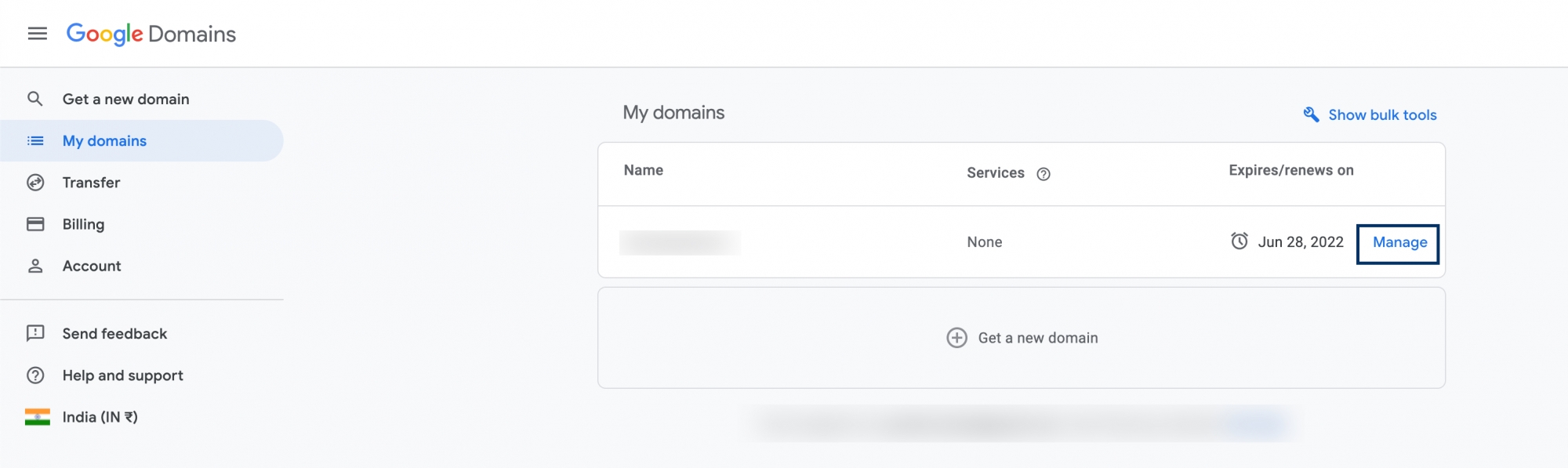
Google Domain

  • Step 3: Click on ‘Registration settings,’ then navigate to the ‘Domain permissions’ section.

  • Step 4: Click ‘Add user,’ enter the delegate’s email address, and confirm.

How to share access to your Google Domain account | Green Hosting, Sustainable Web Design and ...

  • Step 5: The delegate will receive an email invitation to access your domain settings.

For a step-by-step guide, you can refer to AZELLA Advisor’s instructions.

Important Considerations When Delegating Access to Your Domain Provider

Delegating access to your domain provider can be a convenient and secure way to allow professionals to manage your domain settings without compromising your account credentials. However, it is crucial to take the proper security measures to protect your domain from unauthorized changes or misuse. Below are the key considerations to keep in mind when granting delegate access.

1. Security: Protecting Your Domain and Account

One of the biggest advantages of delegating access is that it allows web developers, IT specialists, or digital marketers to configure your domain settings without requiring direct access to your account login. This reduces the risk of exposing sensitive credentials that could lead to unauthorized actions or security breaches.

However, to maximize security, follow these best practices:

  • Use strong authentication measures: If your domain provider offers two-factor authentication (2FA), enable it to add an extra layer of security.
  • Grant access only to trusted individuals or organizations: Ensure that the person or team you are delegating access to is reliable, professional, and experienced in domain management.
  • Regularly monitor account activity: Keep track of any changes made to your domain settings and look for suspicious modifications that could indicate unauthorized access.

Why This Matters:
Domains are critical digital assets, and if they fall into the wrong hands, they can be redirected to malicious websites, used for phishing attacks, or even stolen. Proper security precautions will help you prevent cyber threats and unauthorized modifications to your domain.

2. Permissions: Granting the Right Level of Access

Not all domain-related tasks require full control over your account. Most domain providers offer different levels of access, allowing you to customize the permissions based on what the delegate needs to do.

Common Permission Levels in Domain Providers:

  • Basic Access: Can only view domain settings but cannot make any modifications.
  • Technical/Domain Management Access: Can edit DNS settings, update name servers, and manage subdomains.
  • Full Account Access: Can transfer domains, change ownership, and make administrative changes (use with extreme caution).

Best Practices for Assigning Permissions:

  • Only provide the minimum level of access necessary for the task. If the delegate only needs to update DNS records, avoid granting full administrative control.
  • Periodically review and adjust permissions to ensure that no one has unnecessary access to your domain settings.
  • Avoid granting multiple people unrestricted access to your account. Instead, use individual delegate accounts so you can track changes made by specific users.

Why This Matters:
If excessive permissions are granted, a delegate could unintentionally (or intentionally) transfer domain ownership, delete crucial DNS records, or change name servers, potentially disrupting your website and email services.

3. Revocation: Removing Access When No Longer Needed

Once a delegate has completed the required changes, it is good practice to revoke their access unless ongoing maintenance is required. Leaving unnecessary access open increases security risks and could expose your domain to unauthorized modifications in the future.

How to Revoke Access on Major Domain Providers:

  • GoDaddy: Navigate to Account Settings > Delegate Access > Remove User.
  • Google Domains: Go to Domain Permissions > Remove Access.
  • Network Solutions: Open User Roles & Permissions > Delete User.

Best Practices for Revoking Access:

  • Immediately remove access once the task is completed unless continued management is necessary.
  • If a contractor, freelancer, or agency no longer works with you, make sure to revoke their access as soon as the project is finished.
  • Consider changing passwords if the delegate had administrative-level access to ensure continued security.

Why This Matters:
Leaving access open unnecessarily can increase the risk of security breaches or accidental misconfigurations. By regularly reviewing and revoking permissions, you maintain full control over your domain.

4. Troubleshooting and Support

Even with proper delegation, you might encounter issues when managing domain settings. If you experience technical difficulties, unexpected errors, or security concerns, reach out to your domain provider’s customer support team for assistance.

If you have suggestions to improve these instructions or require assistance in delegating access, please contact us directly for expert support.

By following these security best practices, you can safely delegate access while ensuring your domain remains protected and fully under your control.

If you encounter any difficulties or have suggestions to improve these instructions, please feel free to contact us.


Get Great Insight From Us.

web design trends
December 2, 2025
8 Exciting Web Design Trends for Small Businesses...
8 Exciting Web Design Trends for Small Businesses in New...
Secure Your WordPress Login Without Plugins
November 25, 2025
8 Proven Strategies to Secure Your WordPress Login...
8 Proven Strategies to Secure Your WordPress Login Without Plugins...
web development brief for nonprofits
November 18, 2025
8 Essential Tips for Crafting an Impactful Web...
8 Essential Tips for Crafting an Impactful Web Development Brief...